Showing posts with label hosting. Show all posts

The Advantage of Developing with Blueprint CSS


Recently I’ve been developing websites using the Bluprint CSS framework. Blueprint itself is not new (it’s a little over a year old), but I hadn’t really committed to using it as a standard for my business until about a month ago.

So What’s the Advantage?

The main advantage to using a css framework is speed. Once you figure out what the framework can do, it speeds up development quite a bit by helping to standardize the web development workflow. Blueprint can be the bridge between design and code.
So often it’s the designer that creates the problems in web development…I know because I am one. A simple stroke of design genius can snowball into a usability nightmare or make HTML/CSS markup a living hell. A grid system like Blueprint gives a designer definite bounds to work within, and puts them on the same page with the CSS developer and information architect.
Now if your designer doesn’t totally screw things up with a stroke of genius, then the guy or gal that marks up the HTML and CSS probably will. They’ll think of ultra clever semantic names that later end up being not so semantic. They’ll invent a new layout system because the last ones they did just weren’t good enough. They’ll probably take whatever whimsical approach seems appropriate for the design that was presented to them.
With Blueprint, the approach is different. A web developer can now layout the basic structure of the page (ie header, columns, footer,etc) using CSS that’s provided by the framework. The best part about this is that it takes thinking out of structural layout. You’ll be surprised at how much time you wasted thinking about what to name things like columns let alone the time it actually took to write the CSS for it. After using Blueprint for layout I wondered why I tortured myself by starting with a blank slate each time I started marking up a site.
If you’re lucky enough to have an information architect in your workflow, then Blueprint is going to be a dream come true. Instead of using an image editor like PhotoShop to make wireframes, the information architect can just use Blueprint to make them. In fact, if your designer is also the IA, then why not have them start there. If you can establish your grid and layout with CSS before design then you will be twice as prepared when you actually get to designing. Plus, there’s the added benefit of being able to reuse the code that the IA started at the CSS phase.
Hopefully, by now, the advantage of using a css framework is obvious. The IA starts the design process with Blueprint, hands the grid system and wireframes to the designer who now has a real template to work from, and then the design and basic grid system gets handed to the CSS developer to put it all together. Blueprint helps to standardize your workflow, and standards speed things up by automating simple tasks.
Jef Croft, one of the guys that helped write Blueprint, wrote:
They’re especially great for those working on tight deadlines and those working in teams (teams wherein multiple people work on the same CSS — they benefit from having a consistent set of coding patterns), and also for those working on several sites of a similar nature (for example, a team working at a news company which runs 20+ newspaper sites).
In my experience Blueprint is the best grid system out there right now. It has the cleanest, most flexible, and most supported code to allow your team to work together. However, any grid system can speed up development and there are a few to choose from: 960, YAML, Grid Designer, YUI Grids CSS. The main point is that if you can standardize on a common way to layout pages then all of your developers will work better together.

You Want More?

Here are some more in depth articles…
…and here are some great tools for Blueprint CSS…
  • Blueprint Grid CSS Generator – This tool will help you generate more flexible versions of Blueprint’s grid.css and compressed.css and grid.png files.
  • Grid – Grid is a highly configurable JavaScript bookmarklet which overlays a layout grid on any web-site you wish
  • Photoshop GridMaker Script – Creates guides in Photoshop for css grids.

Create custom website backups using CRON

Several weeks ago I was looking for some alternative hosting for Media Temple and foundWebFaction. While searching the net I found a few reviews and all of them are very good. Because their shared hosting package look different from others, I took an account.

Why Webfaction?

Webfaction is a 100% web hosting provider offering shared hosting plans and managed dedicated servers. Very special is that a shared hosting account has advanced features you didn’t find by other providers. The most important feature is that you get full SSH access to your Linux user directory and processes like PHP and HTTPD are executed as the same user. Having that kind of user accounts gives you much more possibilities like using a reserved amount of memory for a single process or the ability to setup new stuff in the user directory. I think WebFaction doesn’t provide a shared hosting account for a beginning webmaster, because their control panel is very basic and is mostly used to create new website, applications, email and database accounts. That will say that other functions like protecting directories or creating CRON jobs must be set via SSH and the command line. They create backups for all your website accounts and all databases. That is for the most users enough, but I like to have real time access to a copy to all my files.

Creating backups for your websites and applications

While this tutorial is based on my experience with the hosting account by WebFaction, it should work for most other Linux accounts or servers. All you need is full access to the user’s home directory. In the past I used the backup function provided by the DirectAdmin control panel for all my hosting. Those backup function (similar to other control-panel types) creates one zipped file from all the user data which is stored on a local or remote location. This type of backup will generate a huge server load if sites becoming bigger. In this tutorial we backup our databases to a local location and we are usingrsync to backup our websites and databases.

Creating backups from your database

First we need one database user which has at least the rights to select an lock tables.
GRANT SELECT, LOCK TABLES ON database.* TO 'yourdumpuser'@'localhost'
If you like to have a single user with full rights for easier database access, you can use this query as an alternative:
GRANT ALL ON database.* TO 'yourdumpuser'@'localhost'
Using the rights for the dump user we’re able to create database backups from the command line like:
mysqldump -uyourdumpuser -hlocalhost -pyourdumppassword database | gzip --best > yourmysqlbackup.gz
This command creates an already gzip compressed database backup file. If you have have many databases you need a lot of commands it would be easier to run a bash script like this one:
#!/bin/sh
DBUSER="yourdumpuser"
DBHOST="localhost"
DBPASS="yourdumppassword"
BACKUPDIR="dbbackup"
DBS=`mysql -u$DBUSER -h$DBHOST -p$DBPASS -e"show databases"`
for DATABASE in $DBS
do
if [ $DATABASE != "Database" ]; then
FILENAME=$DATABASE.gz
mysqldump -u$DBUSER -h$DBHOST -p$DBPASS $DATABASE | gzip --best > $BACKUPDIR/$FILENAME
fi
done
This small script will read all database names (where the user has access to) and creates files for all of them. Add this code into a file and save it under the name dbbackup.sh in your Linux home directory and create also the directory dbbackup for the files. The new script need to be executable, use chmod 775 to do that. Test the script with the following command within the directory where the script is located.
./dbbackup.sh

Backup your files using rsync

Next we need a remote backup location to store our data on a safe place. This can be a second server you own or an external service. Important is that you can access that location via SSH. I’m usingEVBackup from ExaVault. They are not very expensive and they offer a great service. They have also a great tutorial on how-to configure your account to access their servers using rsync via SSH.
If you’re looking for a backup solution to backup, synchronize and/or share your data, you should try SpiderOak. They offer great backup solutions for multiple desktop PCs. Just try a free account with 2GB of space.
After you setup you SSH connection between you server and your backup server we can start using rsync.
Note! We followed the instructions on from the EVBackup site and created a SSL key to access the remote location without providing a password. It’sstrongly advised to do the same, otherwise the next steps will not work for you. You can use the instructions from their website for your own server if you change some parameters and values.
The following example will copy all files within the webapps directory from your local server to the remote location (directory backup-1):
rsync -avz --delete -e "ssh -i /home/username/backup/ssh_key" "/home/username/webapps" someuser@someuser.exavault.com:backup-1
/home/username/backup/ssh_key is the location of the ssh key you have created before
/home/username/webapps is the directory with files you want to backup
someuser@someuser.exavault.com:backup-1 is the remote location (in this example an account at exavault.com/EVBackup) where all files are stored
Note the parameter –delete will delete files on remote if the didn’t exist on the local location and -i will create a incremental backup. For additional information about the parameters used with rsync run this command via the command line: rsync --help.

Run backups using CRON

If you have multiple directories to backup you should group them in one bash script:
#!/bin/sh
rsync -avz --delete -e "ssh -i /home/username/backup/ssh_key" "/home/username/webapps" someuser@someuser.exavault.com:backup-1
rsync -avz --delete -e "ssh -i /home/username/backup/ssh_key" "/home/username/dbbackup" someuser@someuser.exavault.com:backup-1
You can add as many rsync commands you need in that script, save it in the user’s home directory with the name data-backup.ssh.
  • We need to run the database backup script to store the current data into the dbbackupdirectory
  • If this backup is finished we start the rsync backup script ( give the first CRON job enough time)
An alternative is to merge both bash scripts, but this is not part of this tutorial. Our entries for the crontab file are (use this command: EDITOR=nano crontab -e)
0 10 * * * /home/username/dbbackup.sh
0 11 * * * /home/username/data-backup.sh
These CRON jobs will run the first script at 10:00AM and the second at 11:00AM.
That’s all to backup your websites and databases using rsync and CRON. If you like to try Webfaction use finalwebsites as promo code, they offer a 60 days money-back guarantee.

Website Monitoring Services: Reviews and Facts

There are so many possibilities why a website went off-line, all of them have one in common: Your visitors can’t access your site and maybe they will never come back!

Possible problems why a website might be off-line:

  • Web server or network is down – A very common problem, there is so much computer technology used…
  • Some web service has stopped working – It might be just one of them; MySQL, Apache or Named/Bind and your website doesn’t function for 100%
  • Too much traffic on your site – Most web servers doesn’t have the capacity for a high traffic website. 500 visitors at the same time might be enough to make your site slow or that a web server crashes.
  • External serving problems; a name server or DNS server is down – this one is nasty; if your DNS zone is down, it’s possible that you see the problem a day later, while others see that your site is down since a while.
  • A script stopped working properly – If a script is written and tested everything looks fine, but what if you get some external content via RSS or by user input? Sometimes a simple, but not standard, text character can break your website.
  • At last but not least “the hacker” – there are so many people on the web trying to bring a website down.
Even if you try to do anything to protect your website or application against all the trouble above, you’re not safe for a failure. You have to monitor your website and hopefully a problem is notified fast enough before you loose a lot of visitors.
Some of you will say:
“I don’t need to pay for a service, because my hosting provider is doing this for free!”
That’s right many good providers will monitor the server you’re hosting on and/or they provide tools which will monitor your server or website. If you use them, check if these tests are done by a server outside from the network where your website or server is hosted. If there is a problem in the rack or router where the monitoring server and your website is located, you will never get a message about the down-time.
Some other important feature for international websites, is the ability to do test from different locations around the world. A problem might exist for only people from some continent, if your business has to take care about this, you should know about problems happen far away from your websites location.
Website monitoring is not a protection against failures but the following features will help you to “tackle” problems very fast:
  • Monitor from different locations – if one fails the bot has to use the next one
  • Multiple notification options – SMS/text messages and email are required, if you can send a downtime message to more than one person, do this!
  • Tests for specific content – Just a ping or HTTP header is often not enough, test for specific text on your site
  • Adjustable values for a timeout – Some websites need more time than others to get loaded.
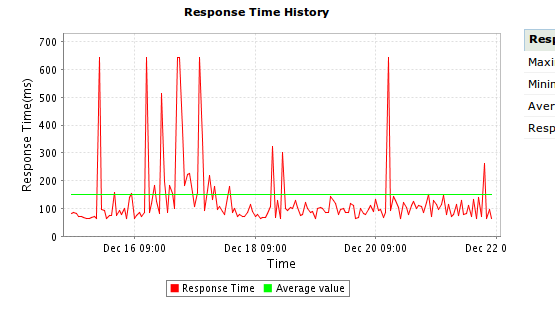
(Screenshot response times Site24x7)
If your website and server is working fine, the number of downtime messages should be very low. If you need to spend several dollars a month for SMS/text messages, it might be usefull to spend this money for better hosting. Website monitoring is to get warned if something went wrong.

Website Monitoring Service Provider

In this article we review three website monitoring service provider, all of them offer a great service product and you find them in a lower price segment. That will say, these services are acceptable for most of the websites on the Internet.
site24x7
I used Site24x7 since they started offering services a few years ago. They offer anything you need to monitor your server or website; Tests on websites or server ports (you can monitor every server port) are only a view options. Visit their website for all the features they offer. They offer a free account and  15day trials for their paid services, if you use the standard or premium service you pay for each single test period  and location. If you need multiple test locations, you should use the premium plan because this plan includes 6 free locations for each test. If you need more than one website tested from multiple locations, than is this provider more expansive than others.
hyperspin
Hyperspin is monitoring provider who offers a lot of features and also a great reseller program. If you’re looking for a way to monetize your websites traffic, by offering your own monitoring service, you should try them. All test features are available and they have multiple locations and you can setup four of them as a global setting for all your tests. They don’t charge you for using all the locations. They offer discounts if you buy more or if you pay in upfront for a whole year. I stopped using them because their control panel was several times not accessible from my laptop (using different IP addresses).
pingdom
Pingdom is the current servuice I’m using to monitor all my websites. Their control panel and website looks very modern and they offering a great plan with five tests for only $9.95/month. They offer e-mail, SMS/text message notifications and a some great integration with Twitter. Multiple test locations are included without any additional charge. I like the fast and clear interface and off course the price. I’m sure I will keep using them the next years.
While most of the features for these three website monitoring service providers are the same, is the pricing very different. I’m sure all three working great, just try them.

Start a hosting business with DirectAdmin


There are thousands of hosting companies on the Internet and maybe this article will help you to start your own. Many companies offering web services are hosting reseller of other (bigger) companies or have partnerships with hosting companies. Maybe you have ever thought to offer hosting services by yourself, with a dedicated server or a VPS hosting account, it’s very easy to offer hosting plans for your existing customers. The following article will show you, using a few examples, how to use a web server installed with the software DirectAdmin to create web hosting accounts using their native API system.
Don’t think it’s easy to pull a new hosting company from the ground. This market is very saturated and we suggest to start offering hosting services most of all to your existing customers only.

VPS hosting versus dedicated server hosting

These days it’s not necessary to have your own dedicated server, a good maintained VPS host is often much more reliable. If the VPS hosting platform is well managed, you don’t have to worry about the shared memory because the virtualization software is able to manage all the resources. Why do you need a dedicated server if a VPS is so powerful? You need your own server for special hardware configurations or if your provider doesn’t have a good VPS platform. While many VPS companies using the same machines, the risk of hardware failures is low because hardware replacements should be a peace of cake. A “special” dedicated or colocated server might be a serious risk, f.e if the motherboard replacement is not available. A VPS host is scalable and often much cheaper than a dedicated server.

Web Server Control Panel

Using a control panel, makes it easy to create or maintain all the web hosting accounts for your customers. Sure as a Linux expert you don’t need a CP, but if you core business is web development, a control panel might really help. There are many of them, most of them are commercial products, but there are also a a few open source projects which are available for free. In this blog post we suggest to use DirectAdmin, because this software is easy to use, the license is not very expensive and there is also a very powerful API system.

Installing DirectAdmin

After you got your VPS (or dedicated server) you’re ready to install the server software. Before you start the installation process check these DirectAdmin requirements. Most important is that your Linux server is not pre-installed with software like Apache, MySQL, PHP, FTP… check this warning from the DA website:
***Please do not install services such as Apache, PHP, MySQL, Ftp, Sendmail, etc., as we will do this for you. All we need is a CLEAN install of your operating system.***
We do not recommend installing DirectAdmin on an existing live production server.
DirectAdmin does not convert existing data upon install.
For most DirectAdmin hosts CentOS is the preferred Linux operating system. You need also a DirectAdmin license, ask your VPS hosting provider, he can offer the license for a low fee.
DirectAdmin installation resources:
The installation process is not part of this article. If you finished the installation part, you should check this DNS installation guide.

Creating hosting accounts

After the final re-boot and your DirectAdmin server is running, you’re able to setup hosting accounts for your customers. You can create them by yourself using the DA control panel or using the DirectAdmin API within your web application. Think about the following application process:
  1. Customer has ordered a hosting accpunt from your website
  2. The payment is cleared and a request is send the API system
  3. Within DirectAdmin a hosting account is created
  4. The customer gets the login and hosting accpunt details via e-mail
How far you’re using this features of DA depends on yourself. The DirectAdmin API is able to manage all functions you need. This way you’re able to create your own we application, without telling your customers that a control panel is used.

Access the DirectAdmin API system

The API documentation is very complete and easy to use even for less experienced developers. There is also a custom PHP class to access the API via a HTTP socket, download the code here.
Using this PHP class is very easy, the following code is used to fetch all the user accounts from a reseller/admin account:
include_once 'httpsocket.php';
$sock = new HTTPSocket;
$sock->connect('some.server.com', 2222); 
$sock->set_login('login', 'password');
$sock->query('/CMD_API_SHOW_USERS');
parse_str($sock->fetch_body(), $result);
print_r($result); // shows the result in the browser
Next we show how-to add a new user to an existing reseller account (the package named “default” is a pre-defined hosting package):
include_once 'httpsocket.php';
$sock = new HTTPSocket;
$sock->connect('some.server.com', 2222);
$sock->set_login('login', 'password');
$sock->query('/CMD_API_ACCOUNT_USER', array(
 'action' => 'create', 
 'add' => 'Submit', 
 'username' => 'abcuser', 
 'email' => 'mail@domain.com', 
 'passwd' => '123456', 
 'passwd2' => '123456', 
 'domain' => 'googles.com', 
 'package' => 'default', 
 'ip' => '123.123.123.123', 
 'notify' => 'yes')
);
parse_str($sock->fetch_body(), $result);
print_r($result); // shows the result in the browser
This API call is the same as creating a user from the web interface:
If you check all the API functions, you will see that it’s possible to create a 100% white labeled web application. Even if you don’t have that kind of web application, it’s very easy to create hosting accounts using the web interface on your DirectAdmin web server.