Where do you start your daily Internet session?

In the beginning the internet has already several portal sites (like Yahoo or all the start pages with hundreds of links), to give the visitor the most important links, an Internet search option or just information.
Today in the Web 2.0 generation, communities are the hot place where people start surfing every day. People like to meet people with related interests and like to see what other people has posted to items they have placed or commented the day before.
For example the webdigity forum is evaluated into a community since people are not only there for the forum but also for other stuff like the tutorials, the CSS design gallery, the link directory and last but not least the features like the forums shop where people can buy things with the points they earned while posting at the forum.
The recent change on the main page, to creat a unique (non forum like) interface, is another step into the direction to build a community for webmasters. As an active member of Webdigity I know that there is more than webmaster related stuff; it’s also fun: Like the Blogotition started by some members or the crazy post contest some month before.

This generation web advertising

After writing last week a short review about the advertisement site 43ads.com I got some interesting comments about other nice Web 2.0 styled advertising ideas.
bla.st
This is a nice combination of free and paid advertising, in the beginning you will get a spot on the first page of common key words like “web-design”. Interesting at this site is, that your ad is live after submission and the possibility to get a direct information how much a bid will raise your ad on selected pages. The website is really clear and you get the chance to have a 270×165 pixel banner ad for free.
ispuare
I found this advertising site via other blogs about the popular “Web 2.0 advertising thing”. Placing a link is for free and after that I got the invitation to get also a free “square” in exchange for a link. Sure the websites idea is very “original”, but I’m not sure that this is the “coolest” way to surf the internet. Placing a square inclusive an extra text link is € 50 at the moment.
At the end I’m asking me, who will visit all the websites behind the ads? In these days there is a lot of traffic because of all the blog posts but what about the real visitors a website need to sell products?

CSS navigation bar with stylish web2.0 elements

Marino from TechSymptom is great web-designer and started a series of Fireworks tutorials on web 2.0 styled navigation bars. The last one inspired me to create this small CSS tutorial.
UPDATE: Based on the tutorials from techSyptom we created a new tutorial, check the tutorial via link below,
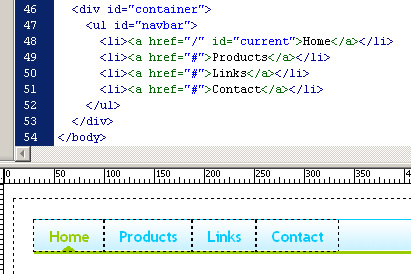
After we finished the design tutorial we need to create 2 simple images to style our CSS navigation bar: A background image (the light blue bar) and a transparent button that indicate the active state, all other elements are created with CSS.
Like in most CSS horizontal navigation bars an unordered list is used to hold the menu items:
screen.jpg
With the next CSS code it’s possible to style the horizontal navigation bar:
#container {
width:800px;
height:600px;
padding:20px;
}
ul#navbar {
background:url(/tutorials/web20_css_bar/backgr.jpg) repeat-x left top;
margin:0;
border-bottom:3px solid #98CB00;
border-top:1px solid #00CCFF;
list-style-type:none;
height:31px;
}
ul#navbar li {
float:left;
}
ul#navbar li a {
display:block;
padding:5px 15px 4px;
font:bold 16px "Trebuchet MS";
text-decoration:none;
color:#00CCFF;
letter-spacing: -0.1em;
}
ul#navbar li a:hover {
color:#98CB00;
}
ul#navbar li a#current {
background:url(/tutorials/web20_css_bar/current.gif) no-repeat center bottom;
color:#98CB00;
}
We placed the background image behind “ul” element and added the two borders to the top and bottom. The li element is defined as a floated block element and got some padding to create a bigger button. The last definition is for the current state, which will show up the tri-angle. You need some server-side code (php) to get a dynamic position every time a different page is loaded.

Using WordPress widgets for an improved blogging experience

Widget is a funny name, but as with many other names online, it’s largely become a commonplace term within the blogging community, at least the blogging community that uses the world-renowned WordPress blogging software.

What are WordPress widgets?

“WordPress widgets” is a term that is used to describe the easy-to-use sidebar functions in any of the widget ready WordPress themes. From within your WordPress blog’s administration area, through the use of client-side scripting languages; Ajax and JavaScript, users can “click and drag” certain sidebar elements and rearrange them to meet their ideal sidebar setup. These elements include the blog search box, links, pages, meta (containing admin login links, rss feed links), categories, most recent posts and text-box elements.
Today, nearly all up-to-date WordPress themes are widget ready, meaning that instead of manually having to modify code in the sidebar.php file for your active WordPress template to get your desired look, in order to modify the look of your WordPress themes’ sidebar, you only need to click on the desired element to add it to the sidebar or re-arrange the elements in any widget ready theme.

Easy to use WordPress “widgetry”

WordPress, in and of itself, has always been user friendly; self-installation of the blogging software is a breeze for anybody who has experience using FTP software, and installation is even easier if your web server has Fantastico installed with your website’s control panel. Installing WordPress using Fantastico literally offers a 2 click install of this popular blogging software.
Offering widget ready WordPress themes only adds to the simplicity of using WordPress; literally offering its non-technical users the ability to click and drag their way to a customized blogging experience.
Where to find widget ready WordPress Themes
There are hundreds of websites that offer WordPress themes, but probably the most comprehensive database of WordPress themes is at the WordPress website itself; having over 1,500 free WordPress blog templates that you can choose from. You can limit your search by color, number of columns, fluid-width or fixed width themes, widget ready themes, templates with rounded corners and even limit the theme search to sidebars that appear on the left or right side of the template.
You can take a check out a large database of WordPress themes using the WordPress theme viewer.

Popular and Powerful WordPress Widgets

The WordPress website offers a comprehensive list of WordPress widgets, though some of links are a bit out of date. You can check out some of the available WordPress widgets here and here.
However, we would like to point out a couple of the more popular WordPress widgets and how they can improve your blogging experience.
ExecPHP
If you’ve messed around with WordPress themes that are widget ready, you know about the text-boxes that you can add to or rearrange on your sidebar. ExecPHP is a text-box widget with a twist; one where you can insert PHP code into it and the code will execute. While running this text-box widget essentially does exactly what adding the PHP code to your sidebar.php will do, when using it as a widget, it becomes a point, click and copy operation instead of having to edit the sidebar.php file manually.
Flexi Pages Widget
The Flexi Pages Widget can give users more freedom to configure and control the pages widget on any widget ready WordPress theme.
IM Online
IM Online is a WordPress widget that will display your online status using popular instant messaging platforms such as AOL, MSN, Yahoo!, Jabber, Google Talk and Skype; giving your blog readership the ability to see when you are available, and contact you, no matter what instant messaging platform they prefer.
Because WordPress offers a blogging platform that is continually growing in popularity, it is becoming increasingly difficult to differentiate your WordPress blog from the tens of thousands already online. By using widget ready WordPress themes, you are easily able to make your blog unique simply by clicking and dragging any number of freely available WordPress widgets into your templates sidebar; thus almost guaranteeing a unique experience for your blogs readership. “Widget” may indeed be a funny name, but even so, you sure can’t deny the fact that these gizmos with a funny name are easy to use.

Create custom website backups using CRON

Several weeks ago I was looking for some alternative hosting for Media Temple and foundWebFaction. While searching the net I found a few reviews and all of them are very good. Because their shared hosting package look different from others, I took an account.

Why Webfaction?

Webfaction is a 100% web hosting provider offering shared hosting plans and managed dedicated servers. Very special is that a shared hosting account has advanced features you didn’t find by other providers. The most important feature is that you get full SSH access to your Linux user directory and processes like PHP and HTTPD are executed as the same user. Having that kind of user accounts gives you much more possibilities like using a reserved amount of memory for a single process or the ability to setup new stuff in the user directory. I think WebFaction doesn’t provide a shared hosting account for a beginning webmaster, because their control panel is very basic and is mostly used to create new website, applications, email and database accounts. That will say that other functions like protecting directories or creating CRON jobs must be set via SSH and the command line. They create backups for all your website accounts and all databases. That is for the most users enough, but I like to have real time access to a copy to all my files.

Creating backups for your websites and applications

While this tutorial is based on my experience with the hosting account by WebFaction, it should work for most other Linux accounts or servers. All you need is full access to the user’s home directory. In the past I used the backup function provided by the DirectAdmin control panel for all my hosting. Those backup function (similar to other control-panel types) creates one zipped file from all the user data which is stored on a local or remote location. This type of backup will generate a huge server load if sites becoming bigger. In this tutorial we backup our databases to a local location and we are usingrsync to backup our websites and databases.

Creating backups from your database

First we need one database user which has at least the rights to select an lock tables.
GRANT SELECT, LOCK TABLES ON database.* TO 'yourdumpuser'@'localhost'
If you like to have a single user with full rights for easier database access, you can use this query as an alternative:
GRANT ALL ON database.* TO 'yourdumpuser'@'localhost'
Using the rights for the dump user we’re able to create database backups from the command line like:
mysqldump -uyourdumpuser -hlocalhost -pyourdumppassword database | gzip --best > yourmysqlbackup.gz
This command creates an already gzip compressed database backup file. If you have have many databases you need a lot of commands it would be easier to run a bash script like this one:
#!/bin/sh
DBUSER="yourdumpuser"
DBHOST="localhost"
DBPASS="yourdumppassword"
BACKUPDIR="dbbackup"
DBS=`mysql -u$DBUSER -h$DBHOST -p$DBPASS -e"show databases"`
for DATABASE in $DBS
do
if [ $DATABASE != "Database" ]; then
FILENAME=$DATABASE.gz
mysqldump -u$DBUSER -h$DBHOST -p$DBPASS $DATABASE | gzip --best > $BACKUPDIR/$FILENAME
fi
done
This small script will read all database names (where the user has access to) and creates files for all of them. Add this code into a file and save it under the name dbbackup.sh in your Linux home directory and create also the directory dbbackup for the files. The new script need to be executable, use chmod 775 to do that. Test the script with the following command within the directory where the script is located.
./dbbackup.sh

Backup your files using rsync

Next we need a remote backup location to store our data on a safe place. This can be a second server you own or an external service. Important is that you can access that location via SSH. I’m usingEVBackup from ExaVault. They are not very expensive and they offer a great service. They have also a great tutorial on how-to configure your account to access their servers using rsync via SSH.
If you’re looking for a backup solution to backup, synchronize and/or share your data, you should try SpiderOak. They offer great backup solutions for multiple desktop PCs. Just try a free account with 2GB of space.
After you setup you SSH connection between you server and your backup server we can start using rsync.
Note! We followed the instructions on from the EVBackup site and created a SSL key to access the remote location without providing a password. It’sstrongly advised to do the same, otherwise the next steps will not work for you. You can use the instructions from their website for your own server if you change some parameters and values.
The following example will copy all files within the webapps directory from your local server to the remote location (directory backup-1):
rsync -avz --delete -e "ssh -i /home/username/backup/ssh_key" "/home/username/webapps" someuser@someuser.exavault.com:backup-1
/home/username/backup/ssh_key is the location of the ssh key you have created before
/home/username/webapps is the directory with files you want to backup
someuser@someuser.exavault.com:backup-1 is the remote location (in this example an account at exavault.com/EVBackup) where all files are stored
Note the parameter –delete will delete files on remote if the didn’t exist on the local location and -i will create a incremental backup. For additional information about the parameters used with rsync run this command via the command line: rsync --help.

Run backups using CRON

If you have multiple directories to backup you should group them in one bash script:
#!/bin/sh
rsync -avz --delete -e "ssh -i /home/username/backup/ssh_key" "/home/username/webapps" someuser@someuser.exavault.com:backup-1
rsync -avz --delete -e "ssh -i /home/username/backup/ssh_key" "/home/username/dbbackup" someuser@someuser.exavault.com:backup-1
You can add as many rsync commands you need in that script, save it in the user’s home directory with the name data-backup.ssh.
  • We need to run the database backup script to store the current data into the dbbackupdirectory
  • If this backup is finished we start the rsync backup script ( give the first CRON job enough time)
An alternative is to merge both bash scripts, but this is not part of this tutorial. Our entries for the crontab file are (use this command: EDITOR=nano crontab -e)
0 10 * * * /home/username/dbbackup.sh
0 11 * * * /home/username/data-backup.sh
These CRON jobs will run the first script at 10:00AM and the second at 11:00AM.
That’s all to backup your websites and databases using rsync and CRON. If you like to try Webfaction use finalwebsites as promo code, they offer a 60 days money-back guarantee.

Website Monitoring Services: Reviews and Facts

There are so many possibilities why a website went off-line, all of them have one in common: Your visitors can’t access your site and maybe they will never come back!

Possible problems why a website might be off-line:

  • Web server or network is down – A very common problem, there is so much computer technology used…
  • Some web service has stopped working – It might be just one of them; MySQL, Apache or Named/Bind and your website doesn’t function for 100%
  • Too much traffic on your site – Most web servers doesn’t have the capacity for a high traffic website. 500 visitors at the same time might be enough to make your site slow or that a web server crashes.
  • External serving problems; a name server or DNS server is down – this one is nasty; if your DNS zone is down, it’s possible that you see the problem a day later, while others see that your site is down since a while.
  • A script stopped working properly – If a script is written and tested everything looks fine, but what if you get some external content via RSS or by user input? Sometimes a simple, but not standard, text character can break your website.
  • At last but not least “the hacker” – there are so many people on the web trying to bring a website down.
Even if you try to do anything to protect your website or application against all the trouble above, you’re not safe for a failure. You have to monitor your website and hopefully a problem is notified fast enough before you loose a lot of visitors.
Some of you will say:
“I don’t need to pay for a service, because my hosting provider is doing this for free!”
That’s right many good providers will monitor the server you’re hosting on and/or they provide tools which will monitor your server or website. If you use them, check if these tests are done by a server outside from the network where your website or server is hosted. If there is a problem in the rack or router where the monitoring server and your website is located, you will never get a message about the down-time.
Some other important feature for international websites, is the ability to do test from different locations around the world. A problem might exist for only people from some continent, if your business has to take care about this, you should know about problems happen far away from your websites location.
Website monitoring is not a protection against failures but the following features will help you to “tackle” problems very fast:
  • Monitor from different locations – if one fails the bot has to use the next one
  • Multiple notification options – SMS/text messages and email are required, if you can send a downtime message to more than one person, do this!
  • Tests for specific content – Just a ping or HTTP header is often not enough, test for specific text on your site
  • Adjustable values for a timeout – Some websites need more time than others to get loaded.
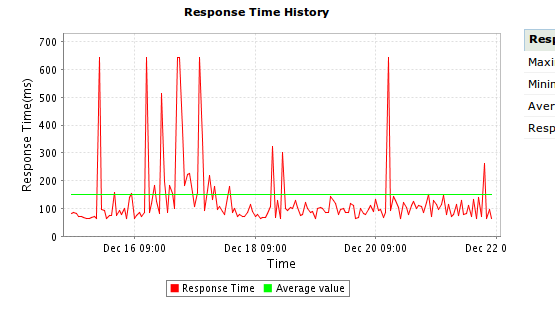
(Screenshot response times Site24x7)
If your website and server is working fine, the number of downtime messages should be very low. If you need to spend several dollars a month for SMS/text messages, it might be usefull to spend this money for better hosting. Website monitoring is to get warned if something went wrong.

Website Monitoring Service Provider

In this article we review three website monitoring service provider, all of them offer a great service product and you find them in a lower price segment. That will say, these services are acceptable for most of the websites on the Internet.
site24x7
I used Site24x7 since they started offering services a few years ago. They offer anything you need to monitor your server or website; Tests on websites or server ports (you can monitor every server port) are only a view options. Visit their website for all the features they offer. They offer a free account and  15day trials for their paid services, if you use the standard or premium service you pay for each single test period  and location. If you need multiple test locations, you should use the premium plan because this plan includes 6 free locations for each test. If you need more than one website tested from multiple locations, than is this provider more expansive than others.
hyperspin
Hyperspin is monitoring provider who offers a lot of features and also a great reseller program. If you’re looking for a way to monetize your websites traffic, by offering your own monitoring service, you should try them. All test features are available and they have multiple locations and you can setup four of them as a global setting for all your tests. They don’t charge you for using all the locations. They offer discounts if you buy more or if you pay in upfront for a whole year. I stopped using them because their control panel was several times not accessible from my laptop (using different IP addresses).
pingdom
Pingdom is the current servuice I’m using to monitor all my websites. Their control panel and website looks very modern and they offering a great plan with five tests for only $9.95/month. They offer e-mail, SMS/text message notifications and a some great integration with Twitter. Multiple test locations are included without any additional charge. I like the fast and clear interface and off course the price. I’m sure I will keep using them the next years.
While most of the features for these three website monitoring service providers are the same, is the pricing very different. I’m sure all three working great, just try them.